Corsi
The 'Corsi' battery of motoric and psychological tests.
If you see an error message when starting Corsi, first install the most recent Experimental build and then the desired version. This will resolve any license issues without losing data.
Minimum iOS: 9.3.5
- Download
- Change Log
- Settings
- Uploading and backing up research data
- Problems retrieving data from the iPad
Download
Do NOT remove the old app before installing a new version.
Latest 6.0 Version:
Previous 6.0 Version:
Latest 5.0 Version:
Install Corsi: 5.0 build 57: plist
Install Corsi: 5.0 build 57: ipa
Previous 5.0 Version:
Install Corsi: 5.0 build 56: plist
Install Corsi: 5.0 build 56: ipa
Older versions: Please contact a representative from the TO3 team for older versions of the app.
Change Log
17/05/2024 Corsi 6.0, build 27:
Updated some instruction for SCCILLS.
Important: upload portal for nomination files has been changed. If you use this function, contact Alex van der Jagt to get info on this change.
26/04/2024 Corsi 6.0, build 26:
Renewed certificate.
17/01/2024 Corsi 6.0, build 25:
Added the MUDK project.
02/11/2023 Corsi 6.0, build 24:
Fixed some instruction for SCCILLS and file upload now properly works.
01/11/2023 Corsi 6.0, build 23:
Added the SCCILLS project.
12/04/2021 Corsi 6.0, build 22:
Fix TOL blocklist voor FOM project
12/04/2021 Corsi 6.0, build 21:
Upload with new certificate
17/05/2021 Corsi 6.0, build 20:
Update for clearer ERT task buttons (font size / button outline). FOM project now uses PICU Tower of London blocklist. Additional instruction slide for PMT task (Action and Attention project).
12/05/2021 Corsi 6.0, build 19:
Bug fix for correct/incorrect detection in the ERT task.
06/05/2021 Corsi 6.0, build 18:
Bug fix for Philadelphia project data upload.
22/04/2021 Corsi 6.0, build 17:
Bug fix for infinite loop in PMT task.
20/04/2021 Corsi 6.0, build 16:
Latest updates for the PMT task (simplified version); Philadelphia project added; Critical error checked for stop task (could not reproduce).
15/04/2021 Corsi 6.0, build 15:
Update PMT task
08/04/2021 Corsi 6.0, build 14:
Addition of AAA project; addition of PMT task; layout update for welcome screen.
21/12/2020 Corsi 6.0, build 13:
Stop task bug fixed and ERT task completed.
09/09/2020 Corsi 6.0, build 12:
Bug fix for pause screen with image. Button is now visible again.
11/03/2020 Corsi 6.0, build 11:
Aesthetic improvements to SOMI_v2 and ART task. Fully functional.
28/02/2020 Corsi 6.0, build 10:
WOOB project is live. SOMI version 2 and ART task pilot version are ready.
12/02/2020 Corsi 6.0, build 8:
Stop task improvement. Beginning implementation of ART task and SOMI2 framework.
06/11/2019 Corsi 6.0, build 5:
Start of implementation for non-relational database support. Numerous bug fixes and general improvements.
26/06/2019 Corsi 5.0, build 57:
Bug fix for peer nomination questions (error in plist key). Improved support for peer nomination lists without last names.
14/06/2019 Corsi 5.0, build 56:
Timeout options added for Brain2 tasks.
13/06/2019 Corsi 5.0, build 55:
Added conditional question for peer nomination, minor bug fixes, and inclusion of ThermoTokyo Mental TTM project. Increased support from 33 to 37 children per class for peer nomination.
06/12/2018 Corsi 5.0, build 53:
Addition of Wisconsin Card Sorting Task (WISC). Fix for reaction time in DOT task.
31/10/2018 Corsi 5.0, build 52:
Addition of Door Opening Task (DOT) and RUMVU project. Correction for the peer nomination questionnaire AILGBnext.
04/06/2018 Corsi 5.0, build 32, 49 en 51:
New license for build 32, 49, and 51.
04/06/2018 Corsi 5.0, build 50:
Repairs the file system so that files can once again be written to and from the iPad via iTunes.
16/04/2018 Corsi 5.0, build 49:
Bug fix for the freezing issue in the dictator game.
16/04/2018 Corsi 5.0, build 45:
Bug fix for the failure to start various tasks.
16/04/2018 Corsi 5.0, build 44:
English flanker instruction for JBD.
--/--/2018 Corsi 5.0, build 43:
PeerNom loader fixed for SOCO. For the JBD study, added a Flanker task consisting of 3x 5 min.
--/--/2018 Corsi 5.0, build 41:
Settings
After installing the app for the first time, two settings need to be adjusted.
- First, go to Settings → General → Profiles → ‘stichting VU-VUmc’.
- Now click on Trust ‘stichting VU-VUmc’.
If this profile is not visible, close Settings, try opening the application, and then go back to Settings.
Next, you need to enter the project name.
- You can do this under Settings — scroll down to “Corsi.”
- Under ‘Study Name,’ enter your research name.
Entering the correct study name ensures the correct tests appear and that the data is uploaded to the right folder.
Note: This is case-sensitive.
Uploading and backing up research data
When all files have been uploaded, you will see the message ‘all files uploaded’ in the bottom left corner of the Corsi app. If there are still files in the queue, it will display ‘uploading files’.
We recommend manually backing up the files in addition to the upload:
- Install iTunes (for Windows or Mac).
- Connect the iPad to your computer, start iTunes, and tap “Trust This Computer” on the iPad.
- In iTunes, go to the iPad icon and click on Apps. Scroll down and click on Corsi.
- Select the folder for your study and click Save.
Problems retrieving data from the iPad
Problem with backing up data using iTunes and similar tools
Problem:
The research data on the iPad is stored in separate folders for each study, test leader, and group/class.
If any of these folder names occur more than once with different capitalization (e.g., “proefleider anne” and “Anne”), the transfer system between the PC and the iPad cannot distinguish them and will refuse to proceed.
Corsi version 5.0 build 50 and higher solves this problem by converting everything from “Anne” to “anne.”
After this, iTunes and similar tools can once again work with the app’s internal file system on the iPad.
Solution:
1. Start corsi
Check and remember which version you are using.
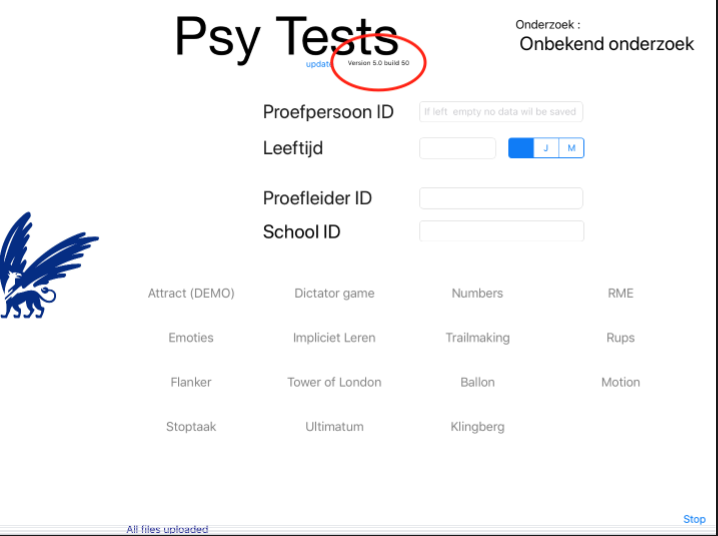
Check if you can find this version in our App Store. (If not, report it via cjj.stoof@vu.nl)
2. Install a newer version of Corsi
Download the most recent version of Corsi from our app store (overwrite the old version, do not delete it first).
Start this version, and the file system on the iPad will now be repaired.
Then close this version, and you can copy your data.
3. Install the desired version of Corsi
Install the desired version of Corsi from our App Store. Do not delete the other version of Corsi on the iPad; simply overwrite it.
You can now still copy your data.
Start Corsi and check if it’s the correct version.
You can now continue with your research.